If you use a Microsoft Windows computer, you have probably heard of Microsoft Copilot—and you may have used it at least once. Maybe you opened the Copilot app in Windows, used Copilot inside a Windows or Microsoft 365 app, or typed a prompt into Microsoft Edge and had it sent to Copilot through Bing.
What can be confusing is that there is not just one Copilot experience. Microsoft offers several versions of Copilot, and the quality of the response can vary widely depending on which one you use. In some places, Copilot may feel limited or unhelpful. In others, it can be genuinely impressive.
Please note that Copilot experiences, features, limitations, and pricing can vary depending on your account type — personal, work, school, government, or otherwise — as well as your region. This post is based on my own experiences using the Microsoft Copilot platform with a personal Microsoft account in the Southeastern United States.
In this post, I’ll walk through a few Copilot experiences you likely already have access to, explain what makes each one different, and help you understand when each version is most useful.
Everyday Copilot: Windows, Edge, iOS, and Android
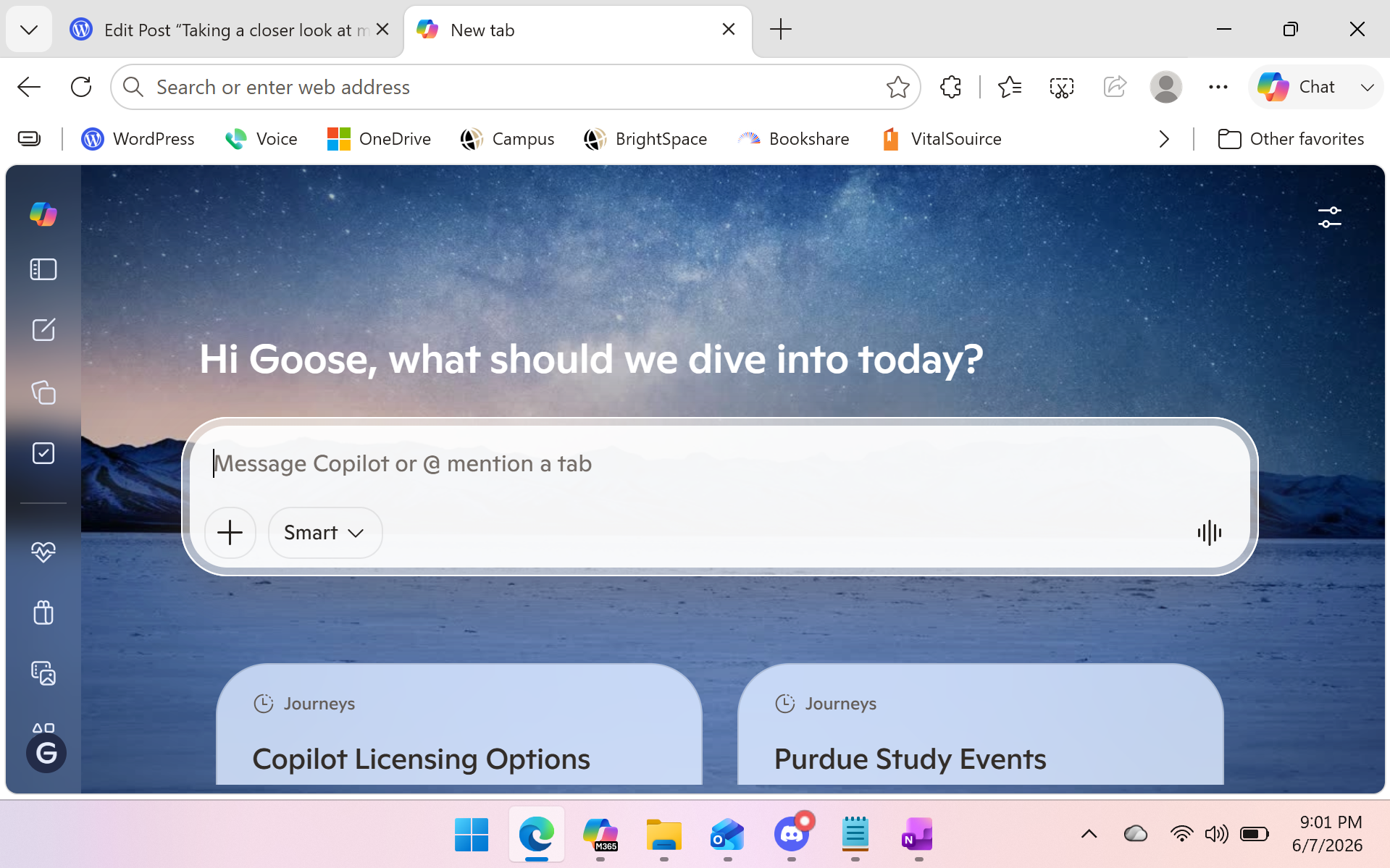
Everyday Copilot is the Copilot you’ve probably heard about online. It is mostly free, with limited access to image generation and some features reserved for Microsoft 365 Premium subscribers. It does not include advertising (at the time of writing, the AI industry is still deciding if/how it wants to handle advertising). Microsoft published a webpage with information on AI credits and the usage by feature by plan type. As an intensive AI user, I have never managed to hit Microsoft’s limits on my Microsoft 365 Premium plan.
One thing I like about Everyday Copilot is that it is very fast. The responses are personable, less academic or clinical, and the overall experience feels more social. It is probably not the best AI tool for doing your homework, though it can answer quick questions when needed.
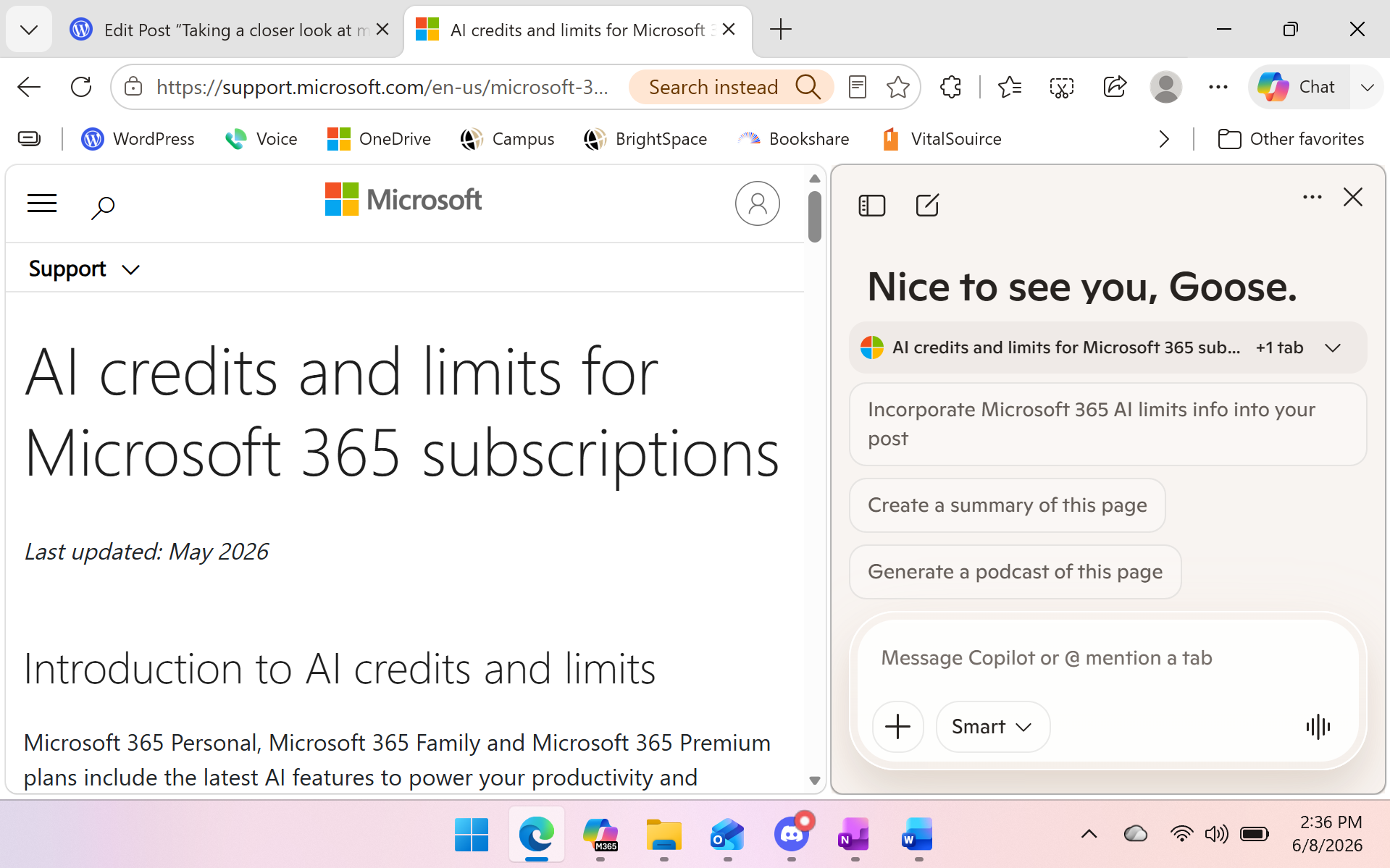
I do not use the Microsoft Windows app very often. I primarily access Copilot through Microsoft Edge. The new tab page includes Copilot, and Edge also has a Copilot Chat button that opens Copilot in the sidebar.
Copilot Chat in Microsoft Edge can read the contents of the web page you are viewing to better inform its responses. It includes an indicator showing which tab Copilot will be able to access when you send your prompt. Other Copilot experiences may also be able to access the contents of an open webpage, but there is usually an indicator to help protect user privacy.
This feature is especially useful when you need Copilot to quickly pull APA citation information from a web page.
If you are a fanatic like me, you can also download the Microsoft Copilot and Microsoft 365 Copilot apps and access Copilot on the go from your iPhone or Android device. The mobile experience includes a voice mode, along with the ability to share your camera. For example, it can help you find your gate at an airport. The mobile apps have their own useful features, which I will leave as an exercise for the reader to explore.
Microsoft 365 Copilot: Agents, Model Flexibility, Office Integration, and More
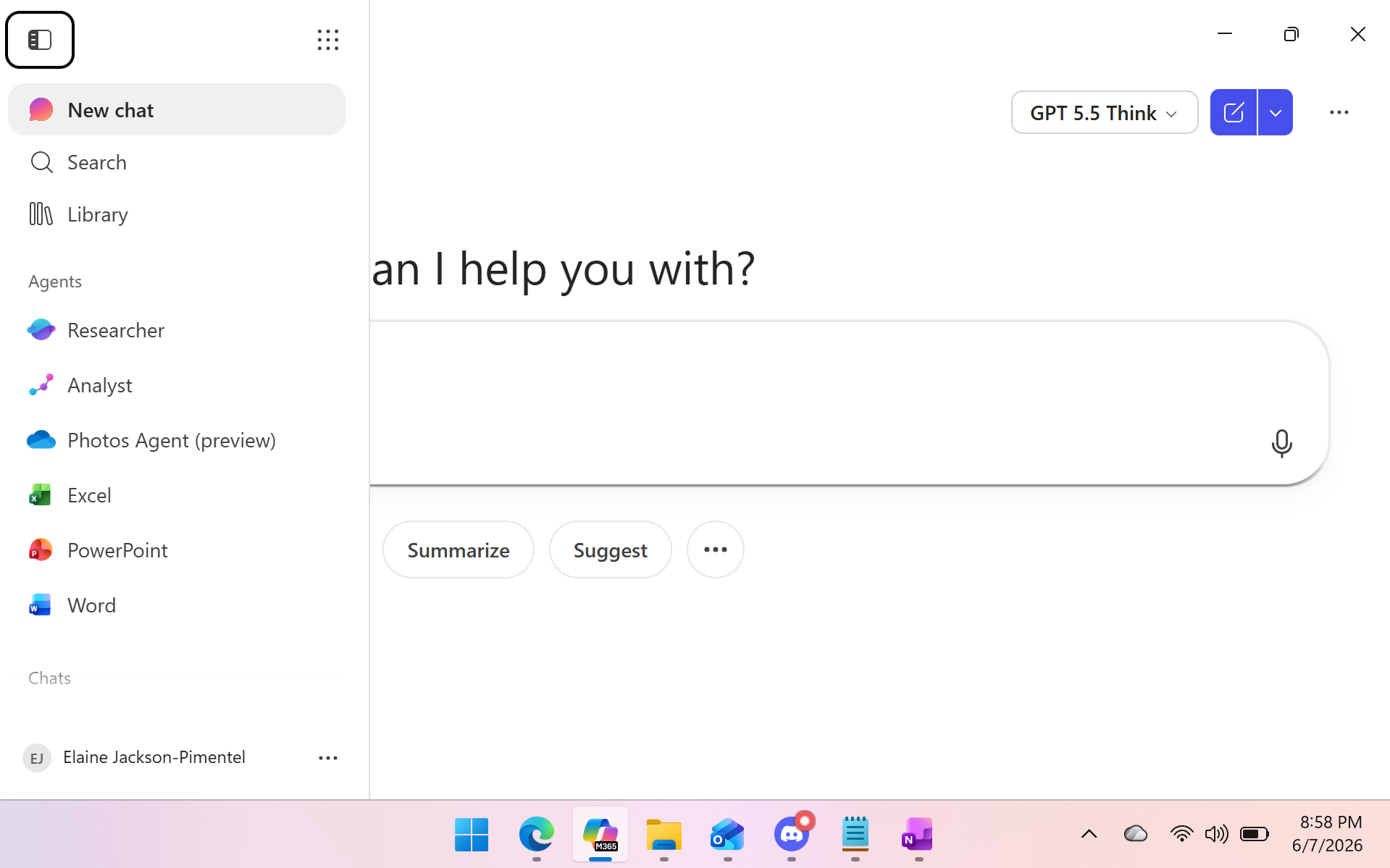
Microsoft 365 Copilot is a separate app available on Windows, the web, and mobile platforms like iOS and Android. It’s fully decoupled from Everyday Copilot, with its own chat history and memory.
While Everyday Copilot offers modes like Smart Mode, Think Deeper, Browse with Copilot, and Study & Learn—without exposing much about the underlying models (it automatically selects what it thinks is best)—Microsoft 365 Copilot uses Auto mode by default but also includes a dropdown that lets you explicitly choose between GPT‑5.2 and GPT‑5.5, along with a Quick Response option for Think Deeper. This gives more experienced users direct control over model selection for specific tasks.
In my experience, Microsoft 365 Copilot also feels faster than Everyday Copilot. I’ve run into lag and even occasional failures to respond when using the iPhone app for Everyday Copilot, whereas Microsoft 365 Copilot doesn’t seem to have those same issues. This isn’t based on benchmarks or standardized tests, but on my own subjective observations from using the different Copilot experiences.
Another major advantage is access to built-in agents for Microsoft Word, PowerPoint, and Excel, along with a Researcher agent, an Analyst agent, and a Photos agent (currently in beta). The Photos agent can help you locate images in OneDrive just by describing them. These agents go beyond regular chat, making it much easier to complete complex tasks quickly. For example, if you need to create or finalize a presentation on short notice, Copilot can tap into your Microsoft account data and help you pull something together fast.
If you had a bad experience with Everyday Copilot, it’s still worth trying Microsoft 365 Copilot—they truly are separate apps, and it’s worth testing it on a few tasks before writing it off.
That said, Microsoft 365 Copilot has limited usefulness without a paid Microsoft 365 subscription, and the value proposition depends heavily on your account type, plan, and region. Personal, family, work, school, and government accounts may have different Copilot features, limits, eligibility requirements, and pricing. Family plans add another wrinkle: even when Copilot benefits are included, many of those AI features are available only to the subscription owner and are not shared with other family members on the plan, so their experience may be more limited. I subscribe to Microsoft 365 Premium for personal accounts, which is currently the highest-priced individual/family Copilot plan Microsoft lists for personal users, at $199.99 per year compared with $99.99 per year for Microsoft 365 Personal and $129.99 per year for Microsoft 365 Family. I’m writing from that perspective as a personal Microsoft account user in the Southeastern United States. While I personally find Copilot valuable, the cost and licensing complexity may slow broader adoption among people who are not ready to pay just to experiment with it.
copilot in microsoft office
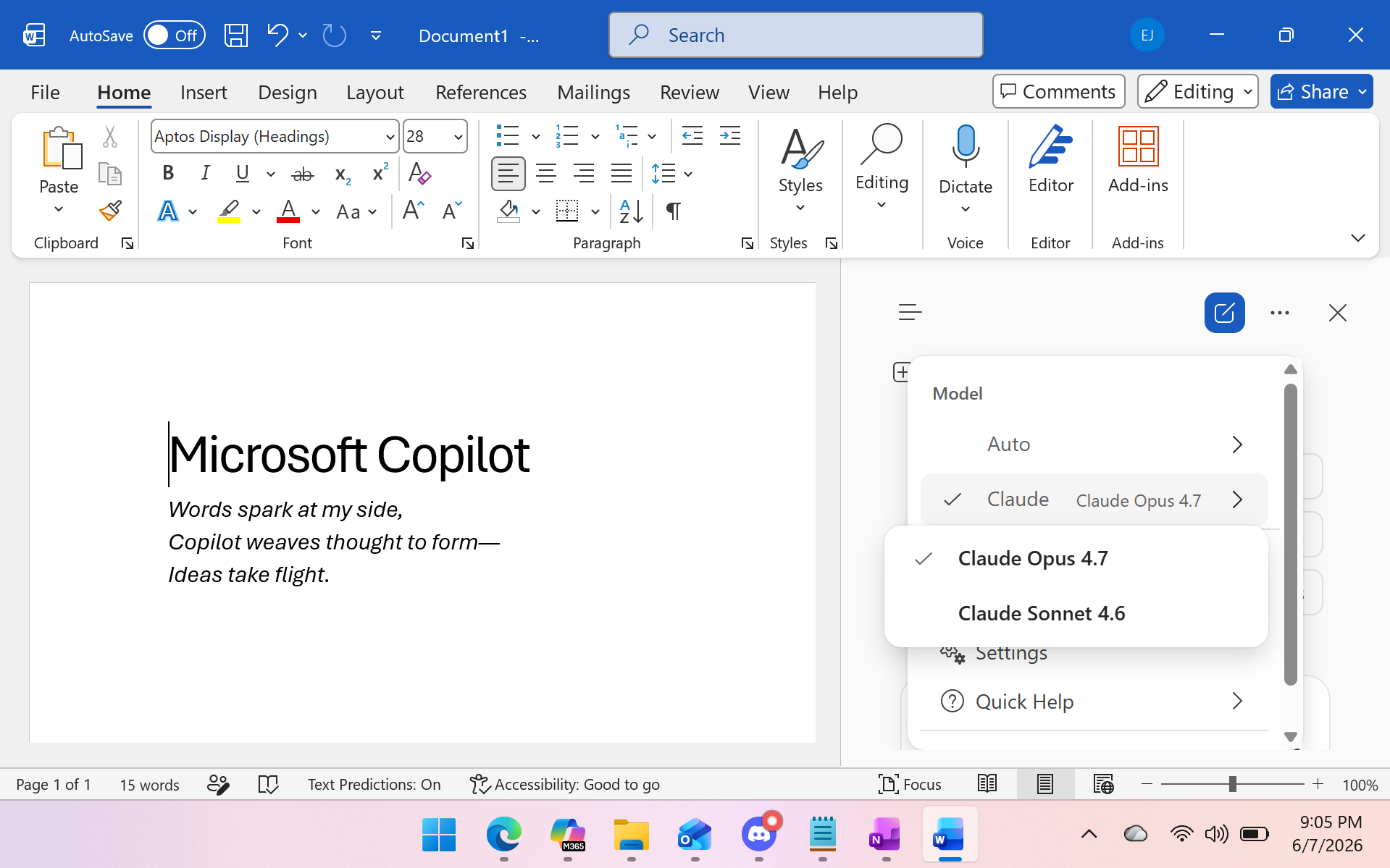
Each Microsoft 365 app integrates with Copilot a little differently, and model availability is not consistent across every surface. In some Copilot experiences, Microsoft is adding model choice between OpenAI models and Anthropic Claude models, but that choice depends on the specific app, feature, license, rollout channel, region, and tenant settings. Excel, for example, has documented support for choosing between ChatGPT and Claude models when editing workbooks with Copilot. PowerPoint also has Microsoft documentation for model choice in certain Copilot editing experiences, though availability may vary. Copilot Chat is different: rather than assuming it has a general-purpose model selector, it is more accurate to say that some tools and agents available through Microsoft 365 Copilot Chat, such as Researcher, support model choice. This matters because Copilot is not one uniform interface across Microsoft 365; it is a platform with app-specific implementations, and the exact model options can change depending on where and how you use it.
and what about this github copilot thing

GitHub Copilot is an AI coding assistant designed to help software engineers write and debug code more efficiently. It uses AI models optimized for programming and works directly inside VS Code, with support for other integrated development environments as well. It is closer in purpose to tools like Claude Code or Google Antigravity than to Everyday Copilot or Microsoft 365 Copilot. Beyond the shared Copilot branding and Microsoft ownership, GitHub Copilot is really its own category of tool.
some thoughts on the aggressive criticism of copilot

When chatting in a Discord server that is highly critical of AI, I asked why people disliked Microsoft Copilot more than other AI apps. The primary complaint was not about response quality or missing features. Instead, it was that Microsoft had integrated Copilot directly into Windows and the Microsoft 365 Office apps.
Some people also dislike that their new computer includes a dedicated Copilot key. In Windows settings, that key can be customized to open a different app, and Microsoft has also discussed options for remapping it to keys such as Right Ctrl or the Context Menu key.
The part I have trouble understanding is that Microsoft is hardly alone here. If you use Google apps, you are likely to encounter Gemini. If you use an Apple device, you may encounter Apple Intelligence. Microsoft Edge, Google Chrome, and even Mozilla Firefox have AI features built in. Yet Microsoft often seems to be held to a higher standard.
That does not mean people are wrong to dislike the integration. There are valid concerns about bloat, privacy, accessibility, unwanted prompts, and companies pushing AI into workflows where users did not ask for it. Still, the backlash against Copilot sometimes feels disproportionate when compared with how widespread AI integration has become across the rest of the software industry.
Unlike tools such as ChatGPT, Claude, or Gemini, many everyday Microsoft Copilot features are available through the free version of Copilot, which can be accessed on the web, in Edge, on desktop, and on mobile devices. Microsoft also separates the free Copilot experience from the deeper Microsoft 365 integrations available through eligible Microsoft 365 plans. OpenAI, meanwhile, has begun testing ads in ChatGPT for users on its Free and Go plans, while several paid tiers remain ad-free.
Even WordPress—the software behind this blog—has AI features for site building, content creation, and editing. To clarify, WordPress.org is the open-source version that users can install on their own hosting, while WordPress.com is a hosted platform that takes care of setup, hosting, and maintenance. This distinction is important because the features on WordPress.com may not reflect what’s included in the self-hosted WordPress software.
At this point, it is difficult to find a major application that has not integrated AI in one way or another. The real question may not be whether AI belongs in these tools at all, but how much control users should have over whether they see it, use it, or remove it from their daily workflow.
key takeaways
- Microsoft Copilot is not a single product; it’s a platform behind many unique AI products.
- Everyday Copilot (accessible at https://copilot.microsoft.com/)
- Microsoft 365 Copilot (accessible at https://m365.cloud.microsoft/chat/) is the more professional version of Copilot that prioritizes model selection, agents, and integration with M365 products.
- The Microsoft 365 Office Apps each have their own integrations with Copilot and the models and features included vary.
- Criticism of Copilot is often around integration not the product itself.
- Every major platform integrates AI in some way or another.
- Empowering users to select their own tools, workflows, and AI products is essential to a fair AI market.

 The Honking Goose
You must be logged in to post a comment.