Over the past several months, I’ve been learning how to use assistive technologies like JAWS and Fusion to work more effectively and independently. As part of that journey, I’ve participated in professional technology consultations and spent time exploring Freedom Scientific (Vispero)’s suite of tools, including JAWS, Fusion, and ZoomText.
In this post, I’ll share what stood out to me—the features, workflows, and insights that made the biggest difference in my day-to-day use of technology.
a bit about jaws
For those who may be unfamiliar, JAWS is a screen reader developed by Freedom Scientific. One of the best ways to get started is by launching FSReader3 (automatically installed with JAWS) and opening the JAWS Basics user guide. You can find it by selecting File and then Open JAWS Training Table of Contents.
If FSReader3 isn’t accessible to you, the same content is also available online in HTML format or as MP3 files. After learning the fundamentals of navigating Microsoft Windows with JAWS, the next step is to build your web browsing skills. Freedom Scientific’s Surf’s Up tutorial is an excellent resource for this.
This learning process takes time, but it will equip you with the skills needed to become a confident and effective JAWS user. At the end of this post, I’ve included additional resources that cover a variety of use cases and applications.
and a bit about zoomtext
ZoomText is a screen magnifier that enlarges content on the screen, making it easier to see for users with low vision. While it is often accessed through Fusion alongside JAWS, it can also be used on its own.
Beyond simple magnification, ZoomText allows you to customize visual elements such as the mouse pointer and text cursor, improving visibility and tracking.
One especially useful feature is Live Text View, which displays a horizontal bar at the top or bottom of the screen showing a few words at a time in large, clear text. This makes it easier to read continuous content without being distracted by other parts of the interface.
A practical use case is reading a Microsoft Word document: you can focus on the document text itself while minimizing or ignoring menus and interface elements that aren’t immediately needed.
and this fusion thing
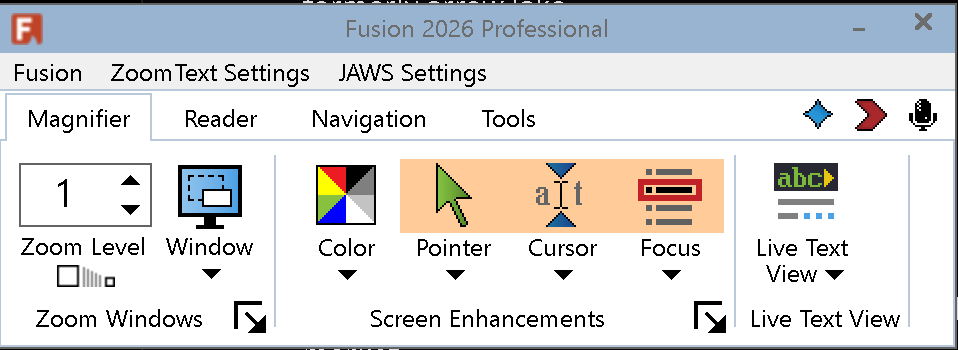
Fusion is a unified interface that combines the functionality of JAWS (screen reader) and ZoomText (screen magnifier). It provides a single environment to quickly access the most commonly used features and settings from both tools.
The traditional menu bar (accessed with the Alt key) includes three main menus: Fusion, JAWS, and ZoomText. These allow you to adjust settings specific to each component. While this interface does not include every option from the standalone programs, it covers the most important and frequently used features.
For advanced or less commonly used settings, JAWS or ZoomText can be opened directly from the Windows Start Menu. This launches their individual interfaces without disrupting Fusion.
Within the main Fusion interface, there are four tabs: Fusion, Reader (JAWS), Magnifier (ZoomText), and Tools. These tabs organize the core functionality needed for everyday use.
Additional buttons provide quick access to Help, the ZoomText Quick Access Bar, and the Voice Assistant.
Together, these elements make Fusion a streamlined way to use both speech and magnification in a single workflow.
my favorite utilities included with jaws
JAWS Convenient OCR allows you to read content that would otherwise be inaccessible, such as scanned documents or image-based PDFs that don’t contain selectable text. It can also be used to capture text from printed materials using a scanner. One notable advantage of this feature is that it uses on-device processing, meaning your content is not uploaded to the cloud.
I’ve found this especially helpful in my coursework, where I occasionally need to work with older research papers from the early 1900s that are only available as scans. Convenient OCR can even export the recognized text to a Microsoft Word document, which, in my experience, is often much easier to navigate and edit than a PDF.
JAWS Picture Smart is a powerful newer feature that uses AI to describe images. By focusing JAWS on an image, you can send it to the cloud and receive a detailed description. This is especially useful when browsing websites that have missing or incomplete alternative text—a common issue on social media and other content-heavy platforms.
To use Picture Smart, press Insert + Spacebar, then P for Picture Smart. From there, press S to analyze the image currently in focus. For a full list of commands and capabilities, check out the Picture Smart documentation on Freedom Scientific’s website.
JAWS Research It is a handy feature that enables you to quickly look up a word or phrase using sources like Wikipedia. You can access it by pressing Insert + Space, then R, which opens a small interactive interface where you can refine your query and choose the source you’d like to search.
While I found the feature itself useful, documentation was a bit harder to track down. I wasn’t able to locate a dedicated webpage, but I did find a detailed technical document (available as a downloadable Microsoft Word file) on Freedom Scientific’s website. It provides a solid overview of the feature, along with guidance on its more advanced capabilities and development options.
practice jaws keyboard shortcuts while away from keyboard
As an aside, I’ve also created a collection of Quizlet flashcard sets to help people learn JAWS. If you’re looking to reinforce key commands and concepts, I highly recommend checking them out. You can even use the Quizlet iPhone app to practice on the go, which makes it easy to build familiarity in short, consistent sessions.
additional resources
- Discord Windows Hotkeys: [Windows] Discord Hotkeys – Discord
- Gmail Keyboard Shortcuts: Keyboard shortcuts for Gmail – Computer – Gmail Help
- Google Chrome Keyboard Shortcuts: Chrome keyboard shortcuts – Computer – Google Chrome Help
- Google Docs Keyboard Shortcuts: Keyboard shortcuts for Google Docs – Computer – Google Docs Editors Help
- Google Drive Keyboard Shortcuts: Keyboard shortcuts for Google Drive on the web – Computer – Google Drive Help
- JAWS Basics: Getting Started With JAWS – Freedom Scientific
- JAWS Hotkeys: JAWS Hotkeys – Freedom Scientific
- JAWS/Windows Complete Hotkeys List: support.freedomscientific.com/support/technicalsupport/bulletin/145?utm_source=copilot.com
- JAWS OCR Webinar: JAWS OCR, What It Is and How It Works! – Freedom Scientific
- JAWS PictureSmart Training: Picture Smart In JAWS: Independently Selecting Your Artwork – Vispero Training
- JAWS Surfs Up: Surf’s Up! Surfing the Internet with JAWS
- Microsoft OneNote Keyboard Shortcuts: Keyboard shortcuts in OneNote | Microsoft Support
- Microsoft Word Keyboard Shortcuts List: Keyboard shortcuts in Word | Microsoft Support
 The Honking Goose
You must be logged in to post a comment.